What The Care Card is
A care summary you carry, not an account you log into.
If you look after someone, you are the record. The Care Card holds the things you end up repeating - medications, diagnoses, allergies, practitioners, appointments - as a QR code on your own phone, so you can hand it over instead of reciting it.
- You fill in what you know, in any order. Nothing has to be complete to be useful.
- The card lives on your device as a QR code, and as a PDF summary you can print.
- Anyone you show it to scans the code and sees the summary. They install nothing.
- There is no account and no password. Nobody can look your card up or request it.
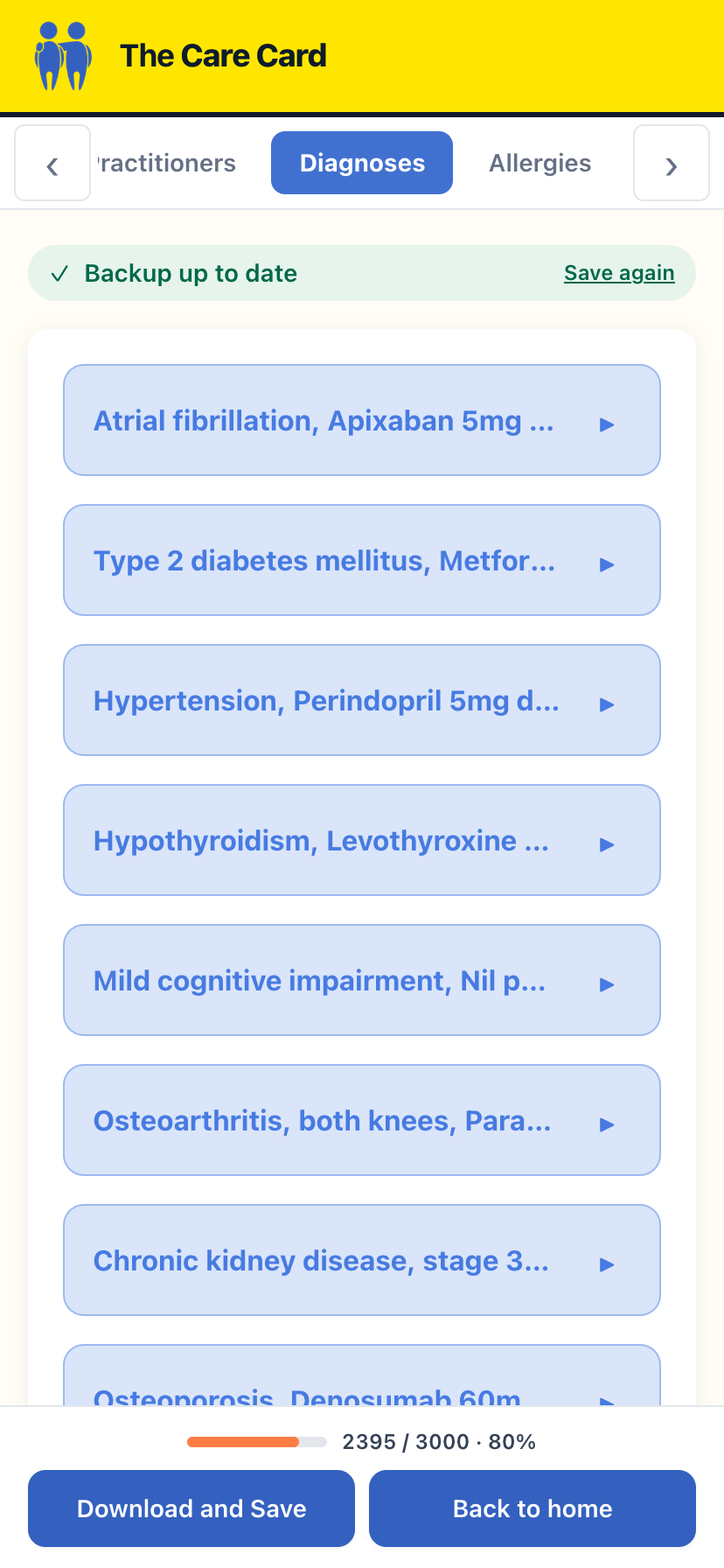
Activate with your code
Enter the code once, while you are online.
Activation Codes look like TCC-XXXX-XXXX-XXXX. You might have bought one, or been given one by an organisation that supports carers.
- Open the app, or go to care.thecarecard.com.au.
- Choose Get started and enter your Activation Code.
- You need to be online for this one step. After that the card works with no signal.
- A code is single use, and it does not expire before you use it.
Worth knowing: If you are setting up on a phone you have used before, choose the option to upload a backup file, QR or PDF instead - that restores the card you already had.
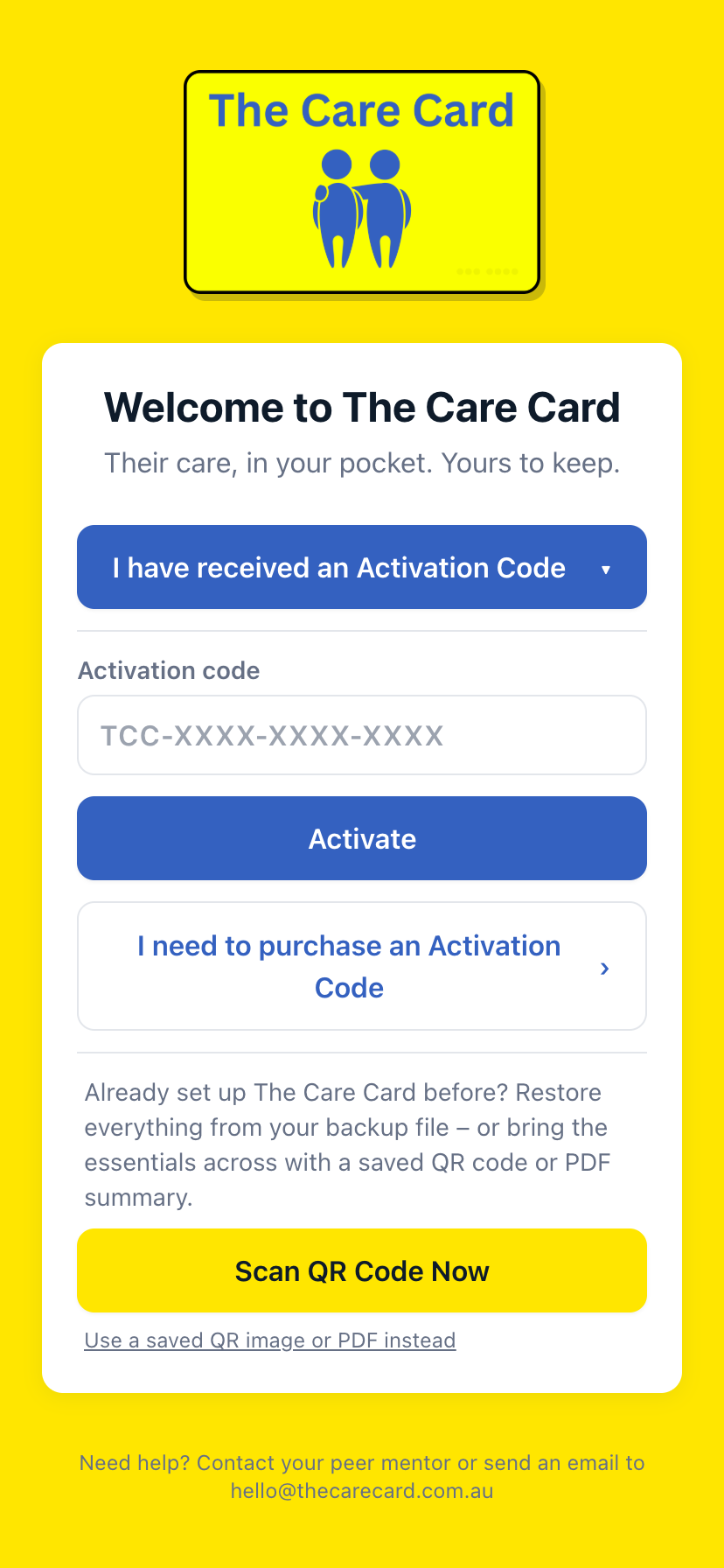
Buying a card
One payment, no subscription.
A card is $76.95 including GST ($69.95 plus GST). It is yours to keep, with no renewals and no expiry.
- Buy from thecarecard.com.au and your Activation Code arrives by email straight away.
- The code also appears on screen as soon as the payment goes through.
- One purchase covers everyone you care for - in the apps you can hold a separate card for each person.
- GST is worked out at checkout from your location, so outside Australia it is not added.
Web, iPhone or Android
The same card, three ways to reach it.
The Care Card works in any browser and as an app on iPhone and Android. The app is the better place to keep it.
- Download from the App Store or Google Play, then enter your code there.
- Use the browser version at care.thecarecard.com.au if you would rather not install anything.
- Looking after more than one person only works in the apps.
- The card lives on whichever device you set it up on - it does not sync between them.
What goes on the card
Seven sections, fill in what you have.
The card is divided into sections. You can leave any of them empty and come back later - most people build it up over a few sittings.
- Diagnoses & meds - what they have, what they take, and what it is for.
- Allergies - shown prominently so they are hard to miss.
- Appointments - with reminders and calendar syncing.
- Practitioners - who is involved in their care and how to reach them.
- Contacts - who to call, in the order you would call them.
- Questions - the ones you think of at midnight and forget by the appointment.
- Notes - anything else that matters, in your own words.
Show the card to someone
One scan, nothing to install at their end.
The QR code is the card. Anyone can scan it with an ordinary phone camera and read the summary.
- From the home screen, show the QR code - tap Enlarge QR code if the screen is small or the light is poor.
- They scan it with their camera. No app, no account, nothing to install.
- Copy share link sends the same card as a link, for when you cannot show a screen.
- Scanning from a screen can be unreliable - print the card or hand over the PDF if it will not read.
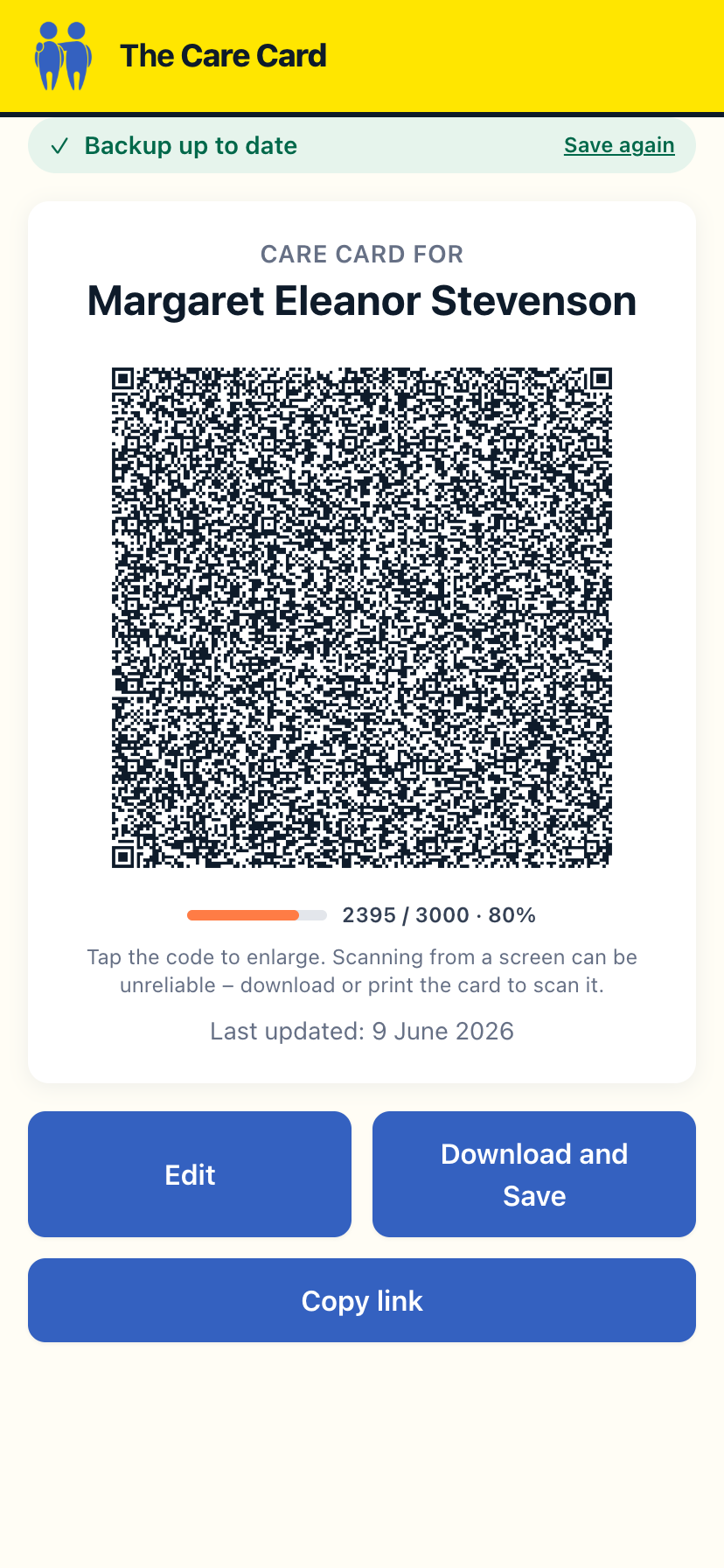
Download a PDF summary
For the fridge, the hospital bag, or the folder.
The PDF is a printable version of the whole card. It is also the simplest way to hand the information to someone who is not going to scan anything.
- Download the summary from the card screen.
- Print it for the fridge, or keep a copy in the hospital bag.
- The PDF can also be used to restore the card onto a new device.
- Download a fresh one whenever the details change - the PDF is a snapshot, not a live copy.
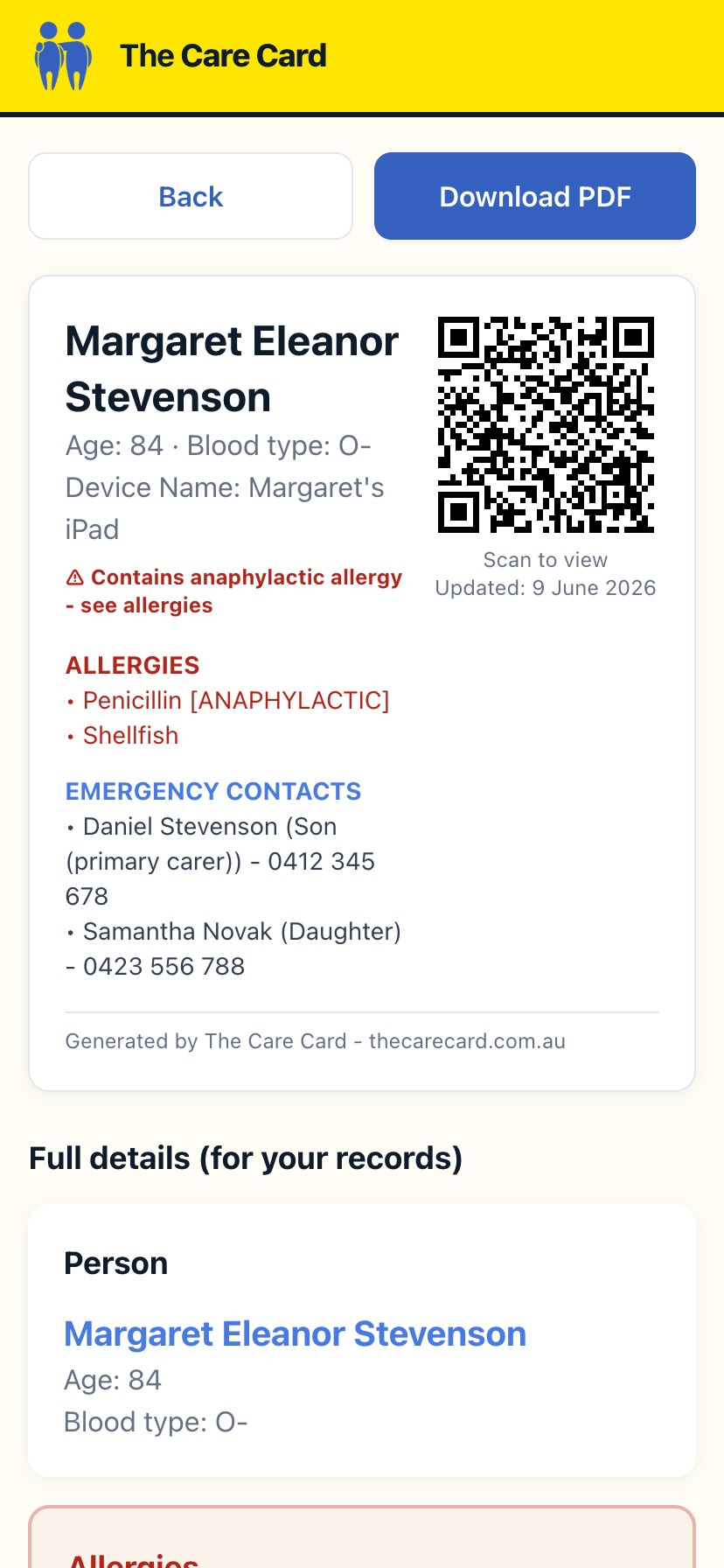
Appointments, reminders and your calendar
Keep the next visit in front of you.
Appointments live on the card, and can also be added to the calendar you already use.
- Open Appointments and add the visit - who it is with, when, and where.
- Turn on reminders if you want the app to prompt you beforehand.
- Send an appointment to your own calendar so it sits alongside everything else.
- Re-sending an updated appointment moves the existing calendar entry rather than adding a second one.
Looking after more than one person
A separate card for each, on the one phone.
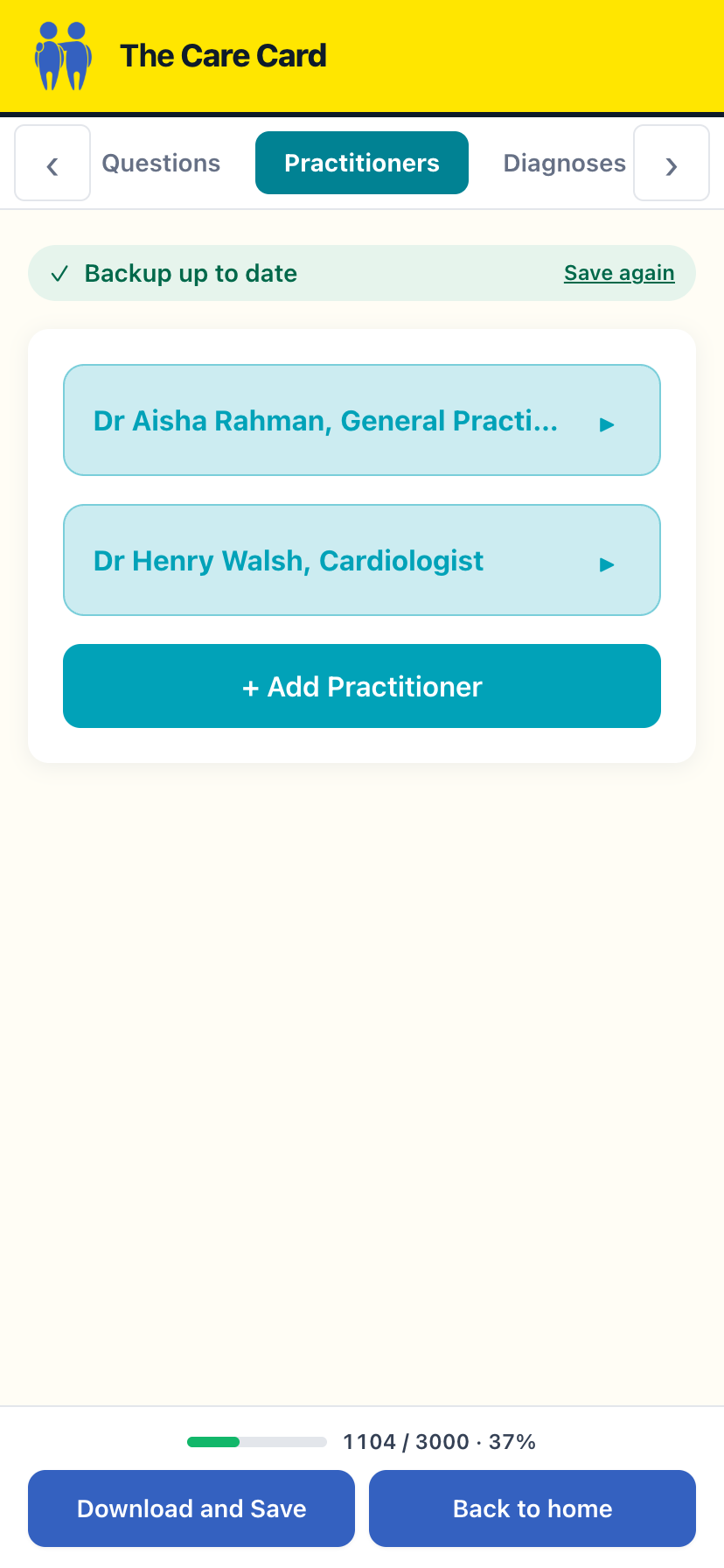
If you care for more than one person, you can hold a separate card for each of them and switch between them. This works in the iPhone and Android apps.
- In the app, use the switcher to add another person you care for.
- Each person gets their own card, their own QR code and their own PDF.
- Switch between them at any time - nothing is mixed together.
- One purchase covers all of them. You do not buy a card per person.
Back up and restore
The one thing worth doing before you need it.
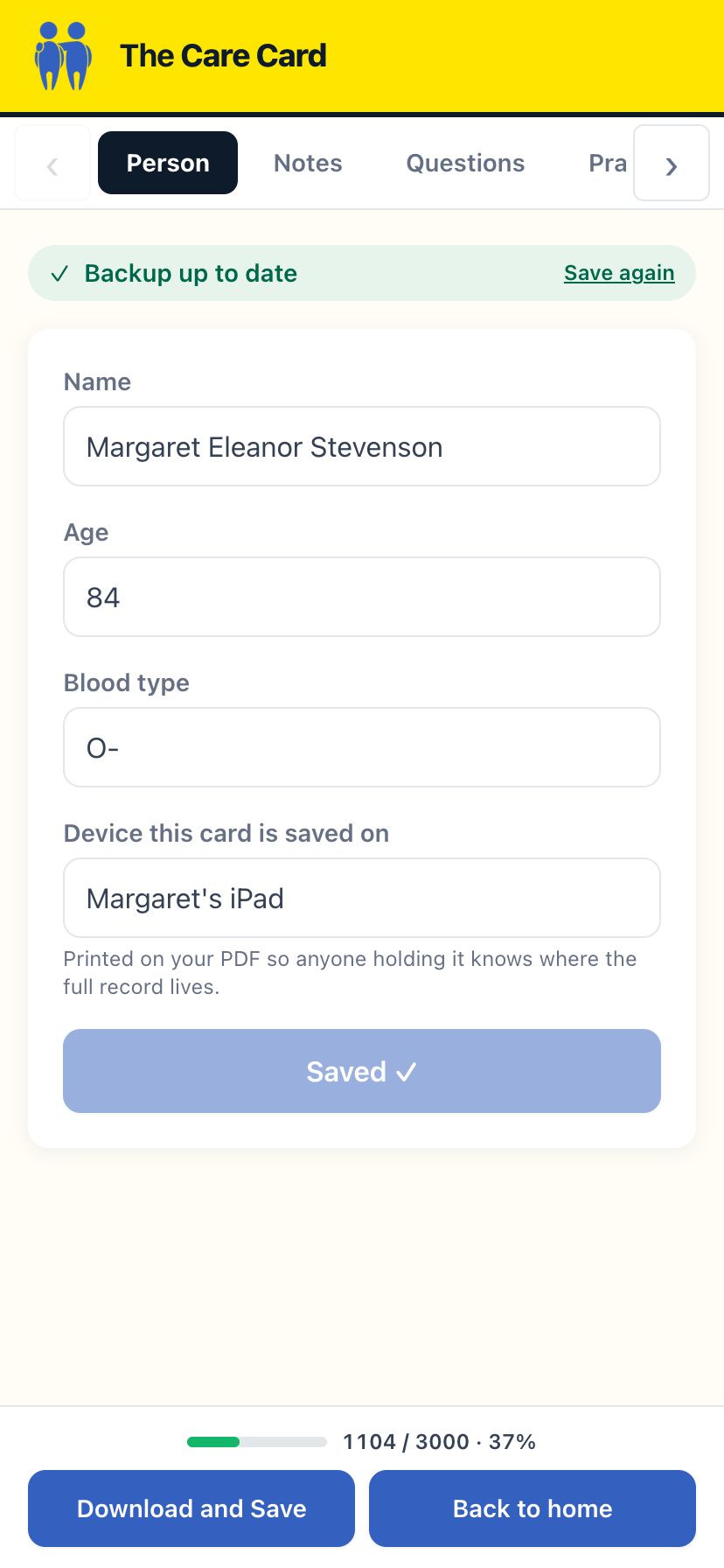
Because the card lives on your device and nowhere else, a backup is how it survives a lost phone. The app tells you when your backup is out of date.
- Download a backup file whenever you have made real changes.
- Keep it somewhere you can reach from another device - email it to yourself, or save it to cloud storage.
- To restore, choose the option to upload a backup file, QR or PDF when you set the app up.
- A QR image or a PDF summary will also restore the card, though a backup file carries the most.
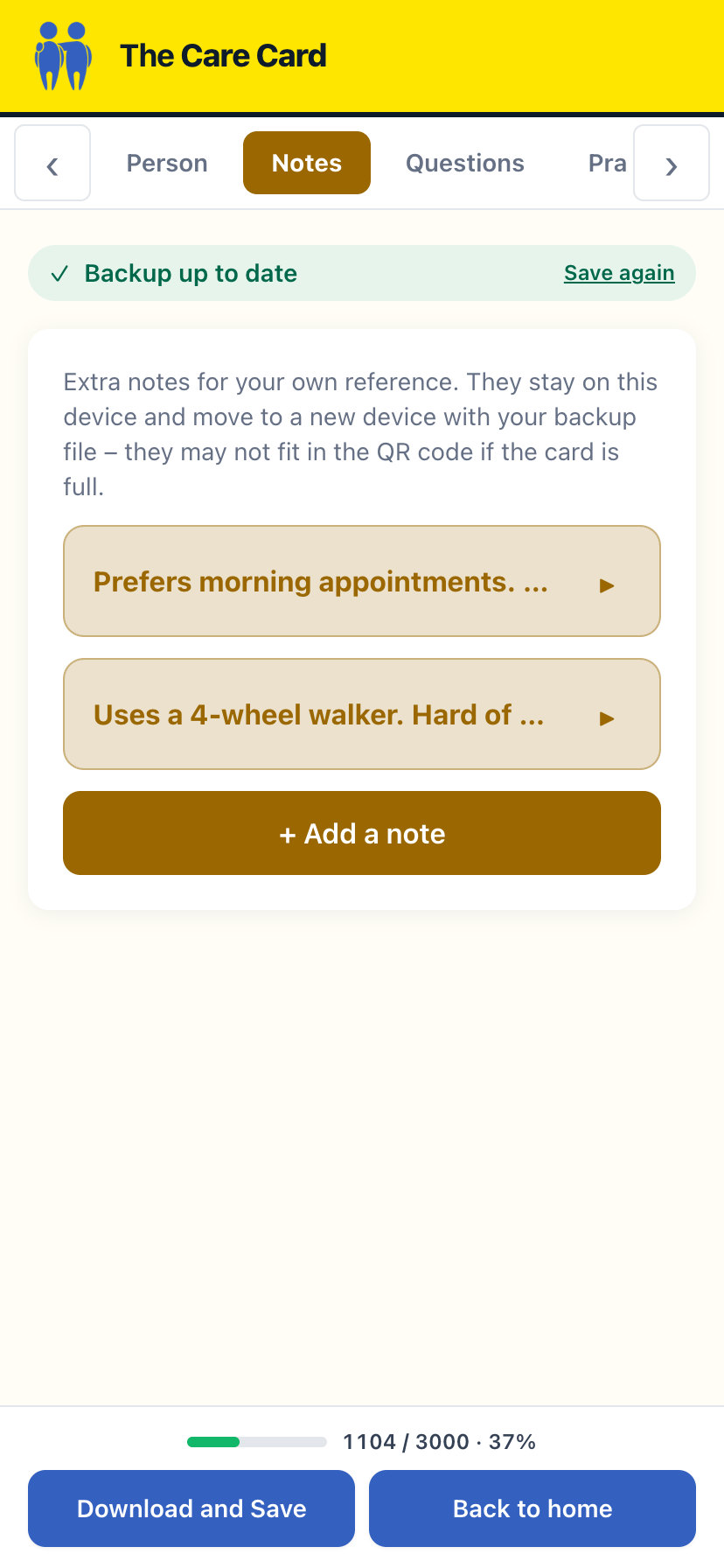
Worth knowing: Notes and Questions are saved on this device only and are not carried in the QR code. If they matter to you, the backup file is the only thing that moves them.
Lock the app
Face ID or a passcode before the card opens.
You can require Face ID, Touch ID or your device passcode before the card will open.
- Open Settings in the app.
- Turn on the Face ID lock.
- The card then stays closed until your face, fingerprint or passcode unlocks it.
- Turn it back off in the same place at any time.
"Card full" - some details will not fit the QR
What the message means and what to do.
A QR code can only hold so much. When the card outgrows it, the essentials are kept in the code and the longer material is left out.
- Medications, diagnoses, allergies, practitioners, contacts and appointments stay in the QR code.
- Notes and Questions are the first things dropped - they stay on your device, but they do not travel in the code.
- Download a backup file if you want those to move to another device.
- The PDF summary still contains everything, so it is the better thing to hand over when the card is full.
Using it without internet
Only activation needs a connection.
After the one-off activation, the card does not need a signal at all.
- Enter your Activation Code once while online.
- After that, build, edit, show and print the card with no connection.
- This holds in a hospital basement, in the car, or anywhere with no reception.
- Someone scanning your QR code does not need a connection either.
Where your information lives
On your device. That is the whole answer.
The details are encoded into the QR code on your own device. They are not uploaded, so there is no database of them anywhere - not ours, and not the organisation that may have given you the card.
- Nothing about the person you care for reaches our servers.
- There is no account for them and no login for you, so there is nothing to be locked out of.
- The card is seen when you choose to show it. Nobody can look it up or request it.
- If an organisation gave you the code, they can see that the code was used - never what is on the card.
See it before you buy
A sample card, no sign-up.
There is a read-only sample card you can look at without buying or activating anything.
- Go to care.thecarecard.com.au/demo.
- It shows a fictional person's card, exactly as a real one looks.
- You cannot edit it or activate from it - it is there to be looked at.
For organisations
Codes to hand out, under your own branding.
Care and support organisations give The Care Card to the carers they work with, under their own branding.
- You hold a pool of Activation Codes and issue them as you need them.
- Split the pool across programs so a grant, a region or a pilot each draws from its own allocation.
- Your logo appears on the card the carer builds and on the PDF summary they hand over.
- You see which codes were issued and which have been activated - never what is on anyone's card.
- Bulk pricing scales with volume. Ask at [email protected].
Activation CodeThe one-time code that unlocks a card, in the form TCC-XXXX-XXXX-XXXX. Bought, or given to you by an organisation.
The cardThe care summary itself - everything you have recorded about the person you look after.
QR codeThe square code that holds the card. Scanning it shows the summary; it is not a link to a website that stores anything.
PDF summaryA printable version of the whole card, including the parts too long to fit the QR code.
Backup fileA file that carries the complete card, including Notes and Questions, to another device.
Care recipientThe person you look after. They do not need an account and never sign in.
Essentials onlyShown when the card has outgrown the QR code. The medical essentials stay in the code; Notes and Questions do not.